How to change your Windows Password

posted by Sam Ravenscroft
Mar 8

How to change your password on Windows XP (domain)

If you are working on a company computer and your company has a server then most likely you need to use the domain method.  (Domain username are usually in the form of DOMAIN\username or username@domain)

It is always a good idea to think of a password before attempting to change your password.

Please take the following into account when changing your password:

  • Choose a password that is secure
  • Choose something that you can remember
  • Never give out your password to anybody else
  • Never write your password down
  • If your organization employs password policies, ensure that your password complies to the length and/or complexity requirements of the password policy.
  • Passwords cannot be the same as your username, e-mail address or first/last name.

Usually the minimum password requirements entail the following:

  • At least 7 characters long
  • Must contain numbers and letters (alpha-numeric)
  • Must contain both upper and lowercase letters
  • Must contain at least one special character (e.g. !@#$%^&*().<> etc.)

Whilst logged on (with your own account):

  1. Press CTRL-ALT-DEL keys simultaneously
  2. In the window that appears (Windows Security), click on “Change password”.
  3. Put your current password in the “old password” box.
  4. Put your new password in the “new password” and “confirm new password” boxes.
  5. Click “ok”

The system will then confirm that your password has been changed or if it could not be changed a reason will be provided.

How to change your password on Windows XP (workgroup)

Use this procedure to change the password you use when you log on to Windows if your computer is a member of a workgroup, and is not a member of a domain.

  1. Open User Accounts in Control Panel.
  2. Under “or pick an account to change”, click your account.
  3. Click “Change my password”.
  4. Type your current password in “Type your current password”.
  5. Type your new password in “Type a new password” and “Type the new password again to confirm”.
  6. You can type a word or phrase to use as a memory aid for the new password in “Type a word or phrase to use as a password hint”. (Do not type your password in this box.)
  7. Click Change Password.

Mar 8

  • Do not use words or phrases that have personal significance.
  • Mix letters, numbers and symbols, and use case sensitivity (upper and lower case letters). This mixture is known as “pseudo-random alpha-numeric combination”; using this, it is almost impossible to “crack” somebody’s password. (i.e. instead of “password,” try “pAsS34%(6*2woRd,” etc.)
  • Find a good way to remember. A good way to do this is to choose the first letters of a sentence that you will remember. e.g. “I have 2 dogs called Rover and Fido” gives: Ih2dcRaF
    • Use punctuation to your advantage. To incorporate a colon into the previous example, remember the sentence as “I have 2 dogs: Rover and Fido”, which would give: Ih2d:RaF
  • Try to memorize the password, and avoid writing it down. Somebody could very easily find the slip of paper that the password is written on.
  • The longer the better. Don’t make a password that’s less than 8 characters. Anything less can easily be deduced from brute force software.
  • Take the street you grew up on, and your first pet/something hard to guess from your past, put a number sign in between, substitute some letters for numbers, and, voila! A great password. For example: Bill grew up on Ocean Avenue, and his first pet was Rocky. His password would be: 0c3an#r0cky You can add random capitals to make it more secure.
  • Do not use the same password for everything. If someone finds this password, they would have access to everything. At the very least, make at least one password for sensitive things (i.e. online banking, etc.) and one for everything else (AIM, email, etc.). Here is an example:
    • Let us suppose you have 5 email accounts, 3 operating system passwords, 3 bank accounts (each with user name, password, extra security pin), 10 internet forum user/passes, 1 cellular phone (uses 2 to 4 pins). (If you are a programmer or db administrator, multiply the total by 3). Say for each of these, you chose a variation of “pAsS34%(6*2woRd,”. Try to memorize 20 of those gibberish sequences! It’s quite difficult, but if you make your sentences relevant to each situation, it will be easier – for example, for banking, your sentence could be “I want to have 1 million pounds every day” (Iw2h1m£ed), and for your emails it could be “I hope no one reads my emails or hacks in!” (Ihn1rmeohi!).
    • Use something you see whenever you need this password to generate the password. Federal Security Bank might lead to FsBmA3456.
    • Use a telephone keypad or 10 character phrase (i.e. blackstump) to encode numbers as letters or vice versa.
  • Another way is using just numbers, but with an algorithm. You could take your birthday, for instance. For a random birthday, let’s use 23/4/87. 2+3+4+8+7=24. 2+4=6. And so your password is simple. now, take 6 and…. 2x2x2=8 4x2x2=16. 1+6=7. 7×7=49. 49×49=2401. This way, you have a password,(2401) and a way to crack it if you forget it!
  • Change your passwords. You should change your password at least every 30 to 60 days. You should also not re-use a password for at least a year.
  • One other way is to use a word, for example, wikihow, and move your fingers up one row on the keyboard. Wikihow becomes 28i8y92.
  • One more way is to create a random syntax (eg. 2 numbers, 5 letters, 1 punctuation mark and 2 more numbers) and randomly populate it with the characters you have said – 94IdmTg;66 could be a password created in this way. The downside of this method is that it is often difficult for most people to memorise passwords created in this way, but if you use it often enough it should become easier over time. This method is only really useful if you believe other people may overhear/attempt to find out your password, as computers will not find such a password any harder to crack than a password holding some meaning!
  • You could also use an entire sentence as a password – including spaces an punctuation.  (E.g. “My computer is Secure as at 2013!!”)


Some Microsoft applications (notably Windows Server Update Services aka WSUS and Windows Sharepoint Services WSS) utilise the Windows Internal Database.

This database can be accessed using either command line tools (such as OSQL and SQLCMD) or Microsoft SQL Server Management Studio.  The Express version of Microsoft SQL Server Management Studio is free and can be downloaded from the Microsoft Download Center.  The easiest is just to Google for “Microsoft SQL Server Management Studio Express download” – one of the top results should link to a Microsoft webpage.  I recommend you only download this from Microsoft.

Once you have installed the Management Studio open it up.

NOTE: When working on Server 2008 and newer you will need to run Management Studio express as an administrator.  Right click on the icon and then select “Run as administrator”.  This is to ensure that UAC does not cause any problems.

Management Studio might show you the MICROSOFT##SSEE database in the dropdown list, however you won’t be able to connect to it. You must use a named pipe.  So paste this into the server field:

\\.\pipe\mssql$microsoft##ssee\sql\query

Then used Windows Authentication and voila you should now have access to the database.


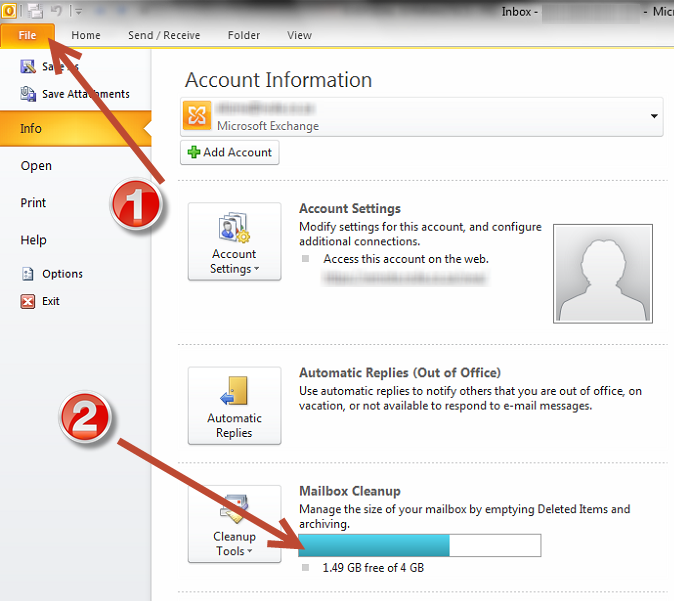
In an Exchange environment you can view your mailbox size and free space from within Outlook.

Start Outlook and click on File:

image

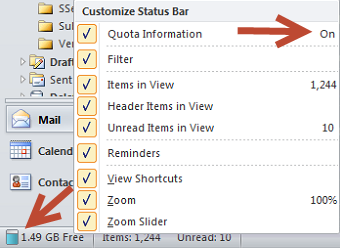
You can also enable a status indicator that always shows:

In the main Outlook window (i.e. the Home tab) right click in the bottom left corner where it shows the Item and Unread message count.  Ensure Quote Information is ticked on the menu that pops up:

image

Should your space be low there are a couple of things you can do to free up space or to increase available space:

  1. Depending on your corporate policy you could ask your Exchange administrator to increase your mailbox space
  2. Delete old and/or redundant mails
  3. Use the Mailbox Cleanup wizard
  4. Archive mails

Note that when you archive mails and you don’t have an online archive that the mails will be archived to a local PST file on your hard disc drive.  If your computer is lost or stolen or breaks then you will lose the archived mails, unless you have a backup of the PST file.


Remote desktop won’t maximize

posted by Sam Ravenscroft
Aug 5

A frustration that I have been having with Remote Desktop (mstsc.exe) on Windows 7 is that sometimes a window (remote session) just won’t maximize to full screen.  It will maximize, but then have scroll bars on the right and/or bottom and not the usual blue bar at the top.

To alleviate the problem I have been starting all my remote desktop sessions via Start -> Run:

mstsc /v remote.example.com /f


The “/f” at the end forces a full screen.  However I sometimes click on the “Restore Down” button by accident, instead of clicking on the “Minimize” button as intended, and try as you might, when you maximize the window, it just won’t go to full screen mode.

The solution is to press the CTRL-ALT-BREAK keys simultaneously.  This key sequence toggles between “windowed” and full screen mode.

I hope this helps you as this was really driving me up the wall!!!


I recently tried installing Dell Appassure Replay Core on a client’s server and received this error message:

Installation failed with error: 1. Bad state (invalid stored block lenghts)


At first I thought this was going to turn into a nightmare and I was about to phone Appassure support, when I Googled the error message.  I couldn’t find any information about this error pertaining to Appassure, but I did find a solution.

This seems to be a generic Windows Installer error that indicates that the installation media is corrupt.

I simply downloaded the installation files again, and hey presto it worked.

So if you get this error message I would suggest that you just try downloading the installer again.


I recently logged a call with Quickbooks South Africa (4th of Jan 2012)  with a problem I had getting my Quickbooks 2010 company file to upgrade to Quickbooks 2012.

After being advised to uninstall and reinstall the program and a whole string of other problems they came to the conclusion that they cannot assist me.

Thereafter I contacted the Quickbooks UK offices.  I advised them that I had spoken to the local Quickbooks office and that they could not help me.  They again took me through the same procedures of uninstalling and reinstalling the product.  Still no resolution.  I then waited about a week before they got back to me.  A support representative connected to my computer and redid all the diagnostics steps that had already been tried, including uninstalling .NET etc.  Still no resolution.  He then took a copy of my company file and advised that it could take up to 2 weeks before they got back to me.

Last night I received an e-mail from them:

I am writing to you regarding the QuickBooks Version 2010 Release 4 Company File send for review and received on Jan 17th, 2012.

As I understand it, you are unable to upgrade your QuickBooks version 2010 Company data file to version 2012 as it crashes during the upgrade process.

I have reviewed your file. I am able to upgrade the file to version 2012 if I shorten the business number.

The business number you have entered is 16 characters including numbers, alphabets, special characters and spaces. If you shorten it to 15 characters you should be able to upgrade it to version 2012.

Open the file in Version 2010, Go to the Company Menu and choose Company Information.

On the Company Information window, Click on the Business Number and shorten it by a character. I had removed one of the slash. You may want to remove some other character. But please make sure that the Business Number is not longer than 15 characters including numbers, alphabets, special characters and spaces. Click on OK to Save the Change.

Go back to the Company Menu and go to Company Information to ensure that the change was saved.

You can now upgrade the corrected file to version 2012 and it should upgrade without any issues.

I did as advised and my company file has been successfully upgraded to 2012.

I’m very happy that the problem has been resolved, it’s just horrific that it took a WHOLE MONTH to resolve such a silly problem.  One would think that the programmers would have been able to put some sort of validation in the software to prevent this type of data validation issue.


Need a quick and dirty way to check the size of all users’s Deleted Items in your Exchange Mailbox Database – here is a nifty powershell script I concocted from a variety of other scripts on the net.

C:\Windows\system32>Get-Mailbox -ResultSize unlimited | Get-MailboxFolderStatistics | where{$_.FolderType -eq "DeletedItems"} | Select-Object Identity, {$_.FolderAndSubFolderSize.ToMb()}, ItemsInFolderAndSubFolders | Export-Csv c:\deleted_items.csv

It exports the data to a CSV file on the root of the C: drive (deleted_items.csv).

You can open this in Excel and easily use the SUM function to get a total of all the users’s Deleted Items folders.

(I wrote this on an Exchange 2010 server, it should work on Exchange 2007 also, but I haven’t tested this on Exchange 2007.)


Moving the database (SUSDB)

The following instructions are for moving the SUSDB and should be valid irrespective of if you are using SBS or WSUS as a standalone product.

As with a regular SQL Server datastore, you can detach and move the database.

Since the database is a normal SQL database, you can simply detach, move and reattach the database. In order to do this, you will however need some tools. Note that these tools are not part of the operating system, so if you haven’t already installed them previosly, then you will need to do so now.

The tools you need are eith SQL Server Managment Studio or SQL Server Management Studio Express. At the time of writing the express (free) version can be downloaded from here:
SQL 2005: http://www.microsoft.com/download/en/details.aspx?id=8961
SQL 2008: http://www.microsoft.com/download/en/details.aspx?id=7593
or search on Google if the above links aren’t valid.
Please download the correct version for your platform (x86 or x64) – Note that SBS 2008+ is ALWAYS x64.

NOTE: You can also download and use the command line tools instead of the full management studio. (If you are familliar with these tools and their usage, then these instructions will probably be a piece of cake for you.)

Command line tools:
sqlncli.msi and SQLServer2005_SQLCMD.msi (Search for them on Google or Microsoft Download)

Prior to moving the database, please stop the following services:

  • IIS Admin Service
  • Update Services (Not Windows Update Service!).

You can do this via the commandline or by using the Services MMC snap-in (start run, services.msc).

Command line:

net stop "update services"
net stop w3svc

(Once the database has been moved you will need to restart these services. Also note that if you have any other services which are dependant on the above services – such as Terminal Services Gateway – they will also be stopped and will need to be restarted.)

Once the services have been stopped, you can proceed to detach the database.

Via SQL Server Management Studio (or Express):

  • Login to server as an administrator.
  • Click Start/Programs/Microsoft SQL Server 2005/SQL Server Management Studio Express. (NOTE: If you are not logged in as Administrator, Right click on SQL Server Management Studio and select Run As Administrator.)
  • Fill in the following information and then click Connect
    • Server type: Database Engine
    • Servername: \\.\pipe\MSSQL$MICROSOFT##SSEE\sql\query
    • Authentication: Windows Authentication
  • Expand Databases, right-click on SUSDB and select Tasks > Detach…  (Please continue reading before proceeding with this step, unless you are 100% sure where your current SUSDB files are located.)
  • Select the “Drop Connection” checkbox and click OK.  (There shouldn’t be any open connections as we have stopped all the relevant services.)
  • Move C:\WSUS\SUSDB folder to the <new drive>:\WSUS directory.  (Assuming that your SUSDB is currently located here – otherwise you can check where it is located prior to detaching the database by viewing it’s properties.)
  • To reattach the database, right-click on Database and select Attach…
  • On the Attach Databases page select the Add button.
  • Browse to the new location of the SUSDB and click OK twice to complete task

Via command line:

  • Login to server as administrator
  • To detach the database:
    c:\Program Files\Microsoft SQL Server\90\Tools\binn\SQLCMD.EXE" -E -S np:\\.\pipe\MSSQL$MICROSOFT##SSEE\sql\query -Q "sp_detach_db 'SUSDB'
  • Now move the SUSDB.mdf and SUSDB.ldf to their new location. In the example below, we use D:\WSUSDB\. Use explorer to move the files to the path you’d like.
  • Then we reattach the database:
    c:\Program Files\Microsoft SQL Server\90\Tools\binn\SQLCMD.EXE" -E -S np:\\.\pipe\MSSQL$MICROSOFT##SSEE\sql\query -Q "sp_attach_db @dbname=N'SUSDB',@filename1=N'E:\WSUSDB\SUSDB.mdf', @filename2=N'D:\WSUSDB\SUSDB_log.ldf'

Moving the content folders (SBS 2008+):

  • Start the Windows SBS Console
  • Click on the Backup and Server Storage icon
  • Click on the Server Storage Tab
  • Select Move Windows Update Repository Data (Right hand side)

Moving the conent folders (non SBS):

The “movecontent” command:

C:\Program Files\Update Services\Tools\wsusutil.exe" movecontent [newpath] [logfile]

For example:

C:\Program Files\Update Services\Tools\wsusutil.exe" movecontent \\server\WSUS$\ c:\wsusmove.log
C:\Program Files\Update Services\Tools\wsusutil.exe" movecontent D:\WSUS c:\wsusmove.log


Source: http://defaultreasoning.wordpress.com/2009/11/16/synchronize-time-with-external-ntp-server-on-windows-server-2008-r2/

I can never seem to remember how to do this on 2008, so herewith instructions (copied from above link):

Time synchronization is an important aspect for all computers on the network. By default, the clients computers get their time from a Domain Controller and the Domain Controller gets his time from the domain’s PDC Operation Master. Therefore the PDC must synchronize his time from an external source. I usually use the servers listed at the NTP Pool Project website. Before you begin, don’t forget to open the default UDP 123 port (in- and outbound) on your firewall.

  1. First, locate your PDC Server. Open the command prompt and type: C:\>netdom /query fsmo
  2. Log in to your PDC Server and open the command prompt.
  3. Stop the W32Time service: C:\>net stop w32time
  4. Configure the external time sources, type: C:\> w32tm /config /syncfromflags:manual /manualpeerlist:”0.pool.ntp.org, 1.pool.ntp.org, 2.pool.ntp.org”
  5. Make your PDC a reliable time source for the clients. Type: C:\>w32tm /config /reliable:yes
  6. Start the w32time service: C:\>net start w32time
  7. The windows time service should begin synchronizing the time. You can check the external NTP servers in the time configuration by typing: C:\>w32tm /query /configuration
  8. Check the Event Viewer for any errors.

If you’re in South Africa, then pick one of the stratum 2 server on the following website:

http://www.time.org.za/

At the time of writing, they are:

Stratum-2 Servers

Server DNS name Location Hosted by OS Platform Upstream ISP
ntp1.meraka.csir.co.za Pretoria CSIR FreeBSD Internet Solutions
ntp.is.co.za Johannesburg Internet Solutions UNIX / FreeBSD Internet Solutions
ntp2.is.co.za Cape Town Internet Solutions UNIX / FreeBSD Internet Solutions
igubu.saix.net Cape Town SAIX Solaris SAIX
ntp-ndf.mweb.co.za Johannesburg M-Web Cisco Internet Solutions
ntp0.za.uu.net Cape Town MTN Business FreeBSD MTN Business
ntp1.za.uu.net New Doornfontein, Jhb MTN Business FreeBSD MTN Business
ntp2.za.uu.net Cape Town MTN Business FreeBSD MTN Business